360 View Video for Your OC
360 View Video for Your OC
Upload a still image and watch your character turn in place, revealing the front, sides, and back in one clip.
360 View Video for Your OC
How to Make a Character Turnaround Video
Start with a character illustration and save the finished spin to share.
Upload Your Character Image
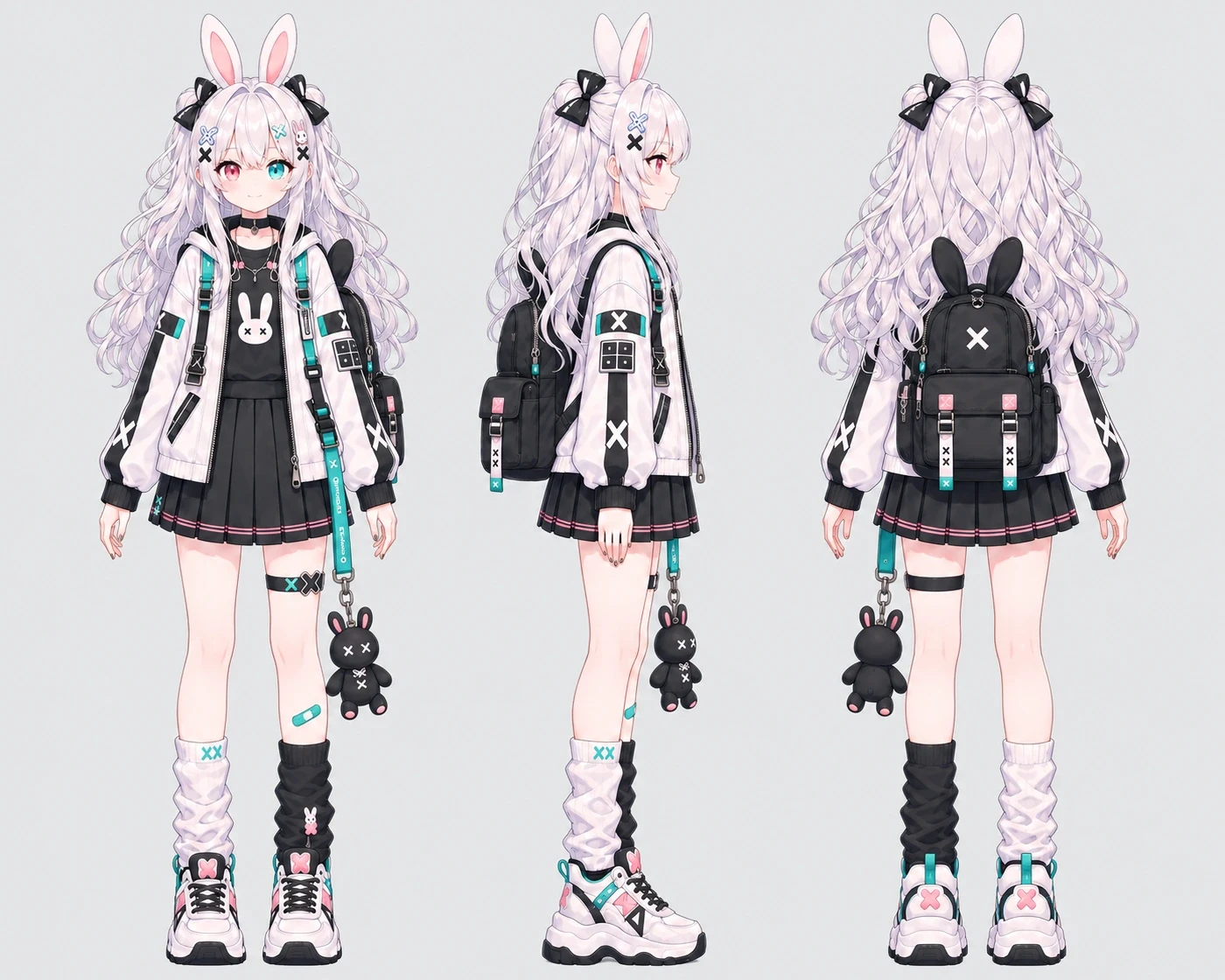
Pick an image of one character with a clear silhouette. A full-body view helps show the entire outfit as your character turns.
Generate the Spin
Choose a video resolution and how many clips to create. Then generate your video using the preset 360° turn.
Preview and Download Your Video
Play the clip to review the rotation, then download the version you want to keep.
See Your Character From Every Side
Give the details outside the front view their own moment on screen.
Start With the Art You Already Have
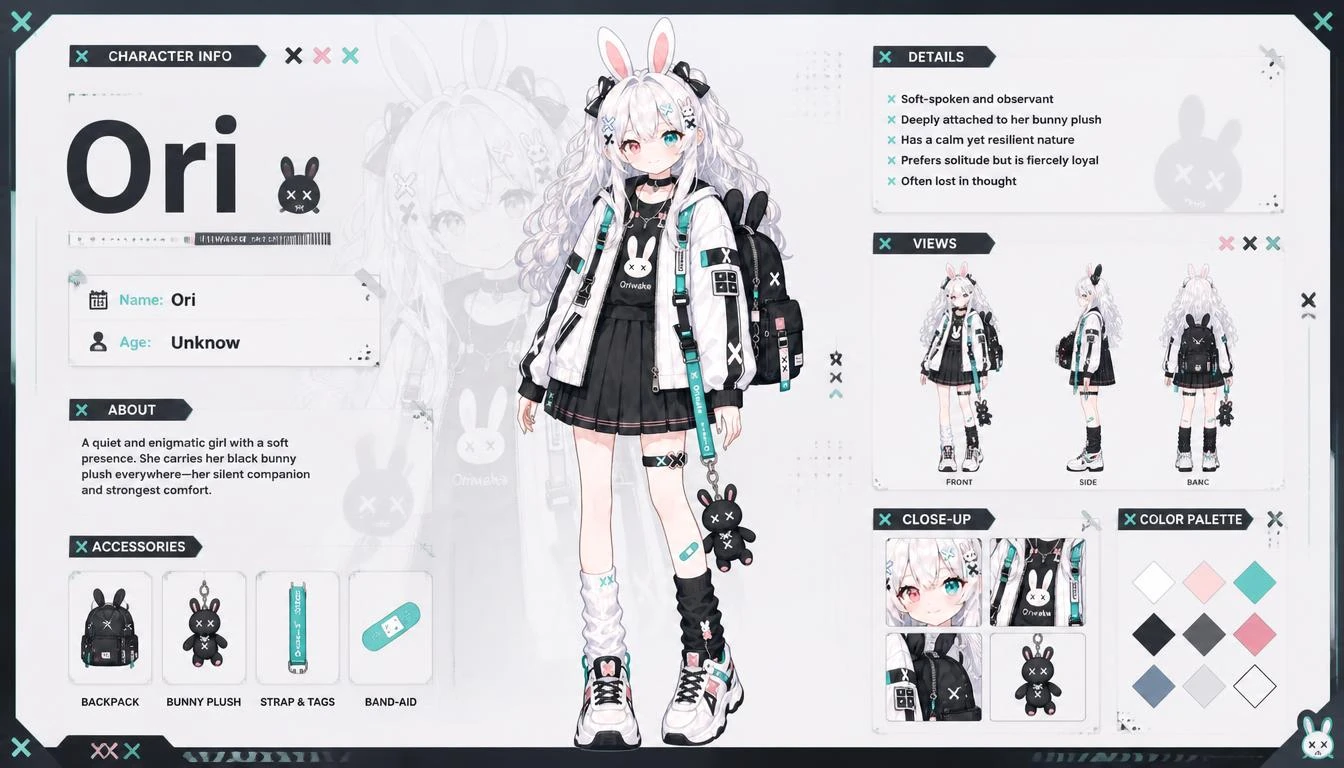
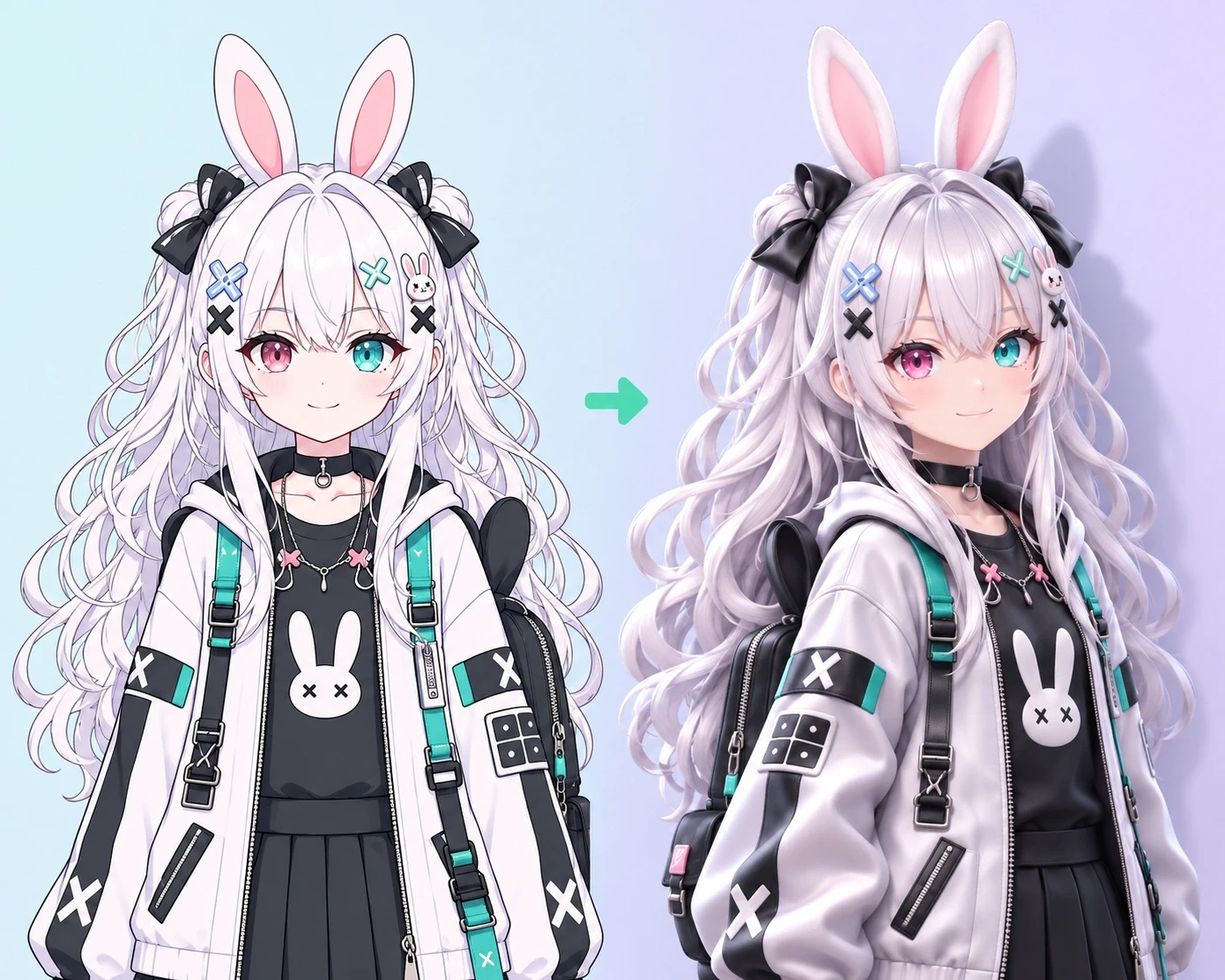
Use an existing OC illustration or design a character with OC Maker and use that image as your starting point.
Keep the Focus on One Pose
Your character turns in place in the same pose, giving you a continuous look at the silhouette and outfit.
Show the Details Around the Back
Give a cape, backpack, or layered hairstyle screen time as your character turns through the side and back views.
What to Do With Your Character Spin
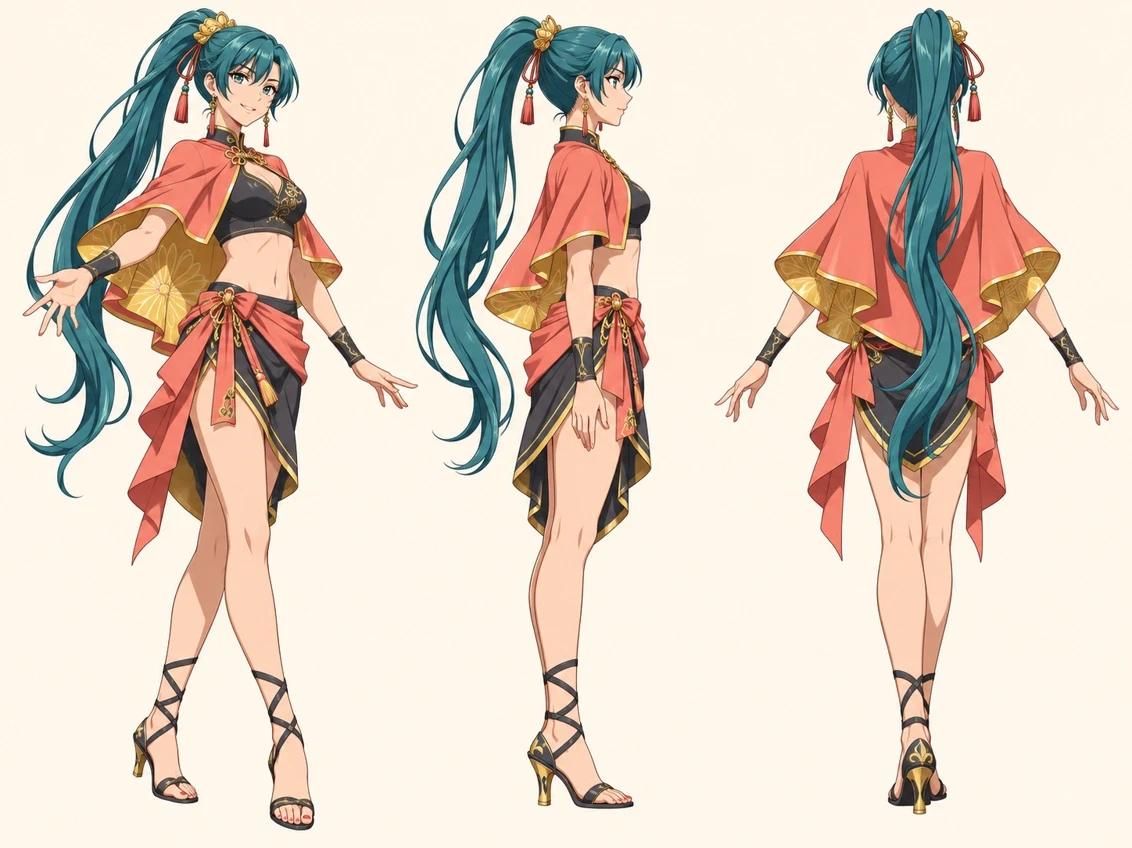
Introduce a New OC
Post a 360° spin video as a character reveal so followers can see the outfit and accessories as your OC turns.
Review an Outfit in Motion
Watch how the silhouette reads as the character turns. Use the clip to spot details you want to refine, such as a collar, cape, or hairstyle.
Add Motion to Your Portfolio
Pair the video with your original illustration to show the design in motion alongside the finished artwork.